Almost done!
Follow these 3 easy steps to complete your installation
Note: If your download did not start automatically, please click here.
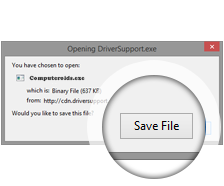
Click “Save File” to download the software.
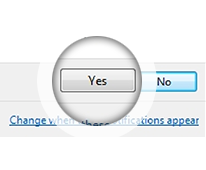
Click “Yes” on the system dialog window to confirm your installation
Follow the easy installation wizard and start optimizing!
All rights reserved DriverPRO support, the Future Code logo and futurecode.shop are trademarks of FutureCode LLC and its affiliated companies. All third party products, brands or trademarks listed above are the sole property of their respective owners. No affiliation or endorsement is intended or implied. You may uninstall DriverPRO at any time using the standard uninstall procedures provided by your computer’s operating system by accessing the “Control Panel > Programs and Features” or “Add/Remove Programs” section, selecting “DriverPRO” from the list of installed applications, and clicking the “Uninstall” button. DriverPRO is compatible with 32-bit and 64-bit versions of Windows 11, Windows 10, Windows 8/8.1, and Windows 7. Minimum system requirements include 25MB of available hard disk space, 256MB RAM, a 300MHz processor or higher, and an active internet connection for driver downloads and activation features. DriverPRO full functionality requires an active subscription plan. Pricing, plans, and promotional offers are subject to change without notice. Without an active subscription, DriverPRO may still assist users in identifying outdated drivers and locating drivers through the respective hardware manufacturers’ websites.